Linux speech to text for real desktop workflows
OpenTypeless brings app-wide voice input to Linux users who want more than raw transcription: choose an STT provider, polish the text with AI, and insert it into the app where you are already writing.
Linux dictation usually has a workflow gap
Linux users can find speech recognition engines, terminal tools, and editor-specific plugins, but a daily dictation workflow needs more than a transcript. It needs a hotkey, provider settings, output behavior, history, and predictable fallback when a desktop environment blocks direct insertion.
OpenTypeless is built around that end-to-end loop. It can use cloud STT for fast setup, local providers when privacy matters, AI polishing for cleaner final text, and clipboard fallback when keyboard simulation is not the right path for your Linux session.
Linux details that matter before you install
Linux voice input is powerful, but display servers, permissions, and app sandboxes can change how text insertion behaves.
Text insertion can depend on your session
Some Linux setups allow keyboard simulation smoothly. Others are stricter, especially under Wayland. Clipboard output is the practical fallback.
You can avoid one-engine lock-in
Use one configured route for day-to-day work, then evaluate a local or self-hosted Custom Whisper-compatible endpoint separately; verify network behavior for both configurations.
Dictation needs to survive technical words
Custom dictionary and AI polishing help with project names, package names, acronyms, issue comments, and technical documentation.
Linux setup checklist
Start with the normal package for your distro, then decide whether direct insertion or clipboard output is more reliable.
Install the Linux build
Download the current Linux package from the download page or GitHub release assets, then launch OpenTypeless from your desktop environment.
Check microphone access
Confirm your default input device works in the desktop session before debugging STT providers.
Choose output mode
Try keyboard simulation first. If your compositor, sandbox, or target app blocks insertion, switch to clipboard output.
Configure STT and AI polishing
Pick cloud providers for speed or local providers for privacy, then enable polishing so the final text needs less editing.
Linux speech-to-text options
The best option depends on whether you want an engine, an editor plugin, or an app-wide desktop workflow.
| Need | Default path | OpenTypeless path |
|---|---|---|
| Terminal STT tools | Great for scripts and file transcription, weaker for app-wide dictation | Desktop GUI, hotkey, provider settings, history, and insertion flow |
| Editor-specific plugins | Useful inside one editor, less useful in browsers, chat, and email | Designed for the current app, whether it is a browser, editor, document, or chat client |
| Built-in accessibility tools | Depends heavily on distro, desktop environment, and language support | Provider choice plus clipboard fallback when direct insertion is unreliable |
| Raw transcript quality | Often needs manual punctuation and cleanup | AI polishing for punctuation, grammar, tone, and formatting |
| Privacy path | Varies by tool and setup | Can be configured with local STT and local LLM providers when hardware allows |
What the workflow looks like in the product UI
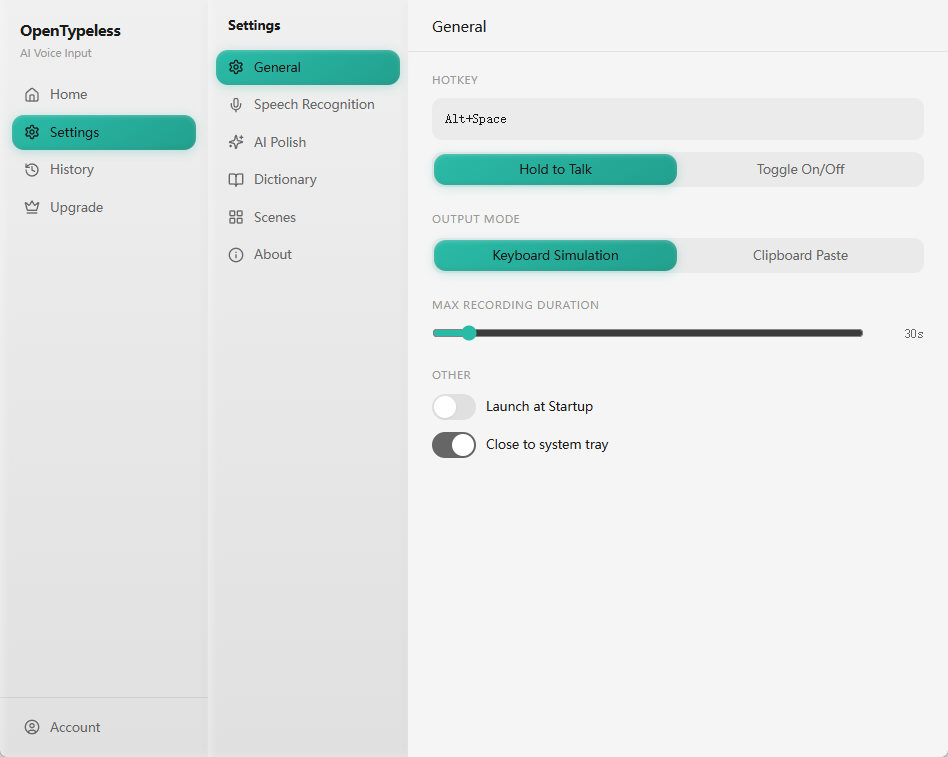
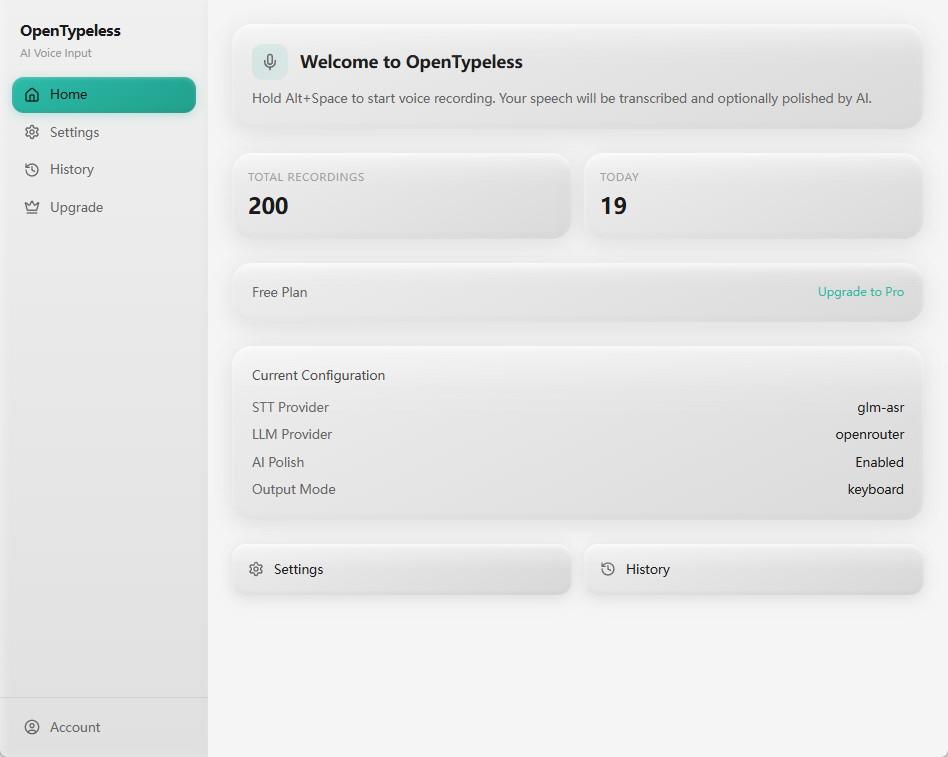
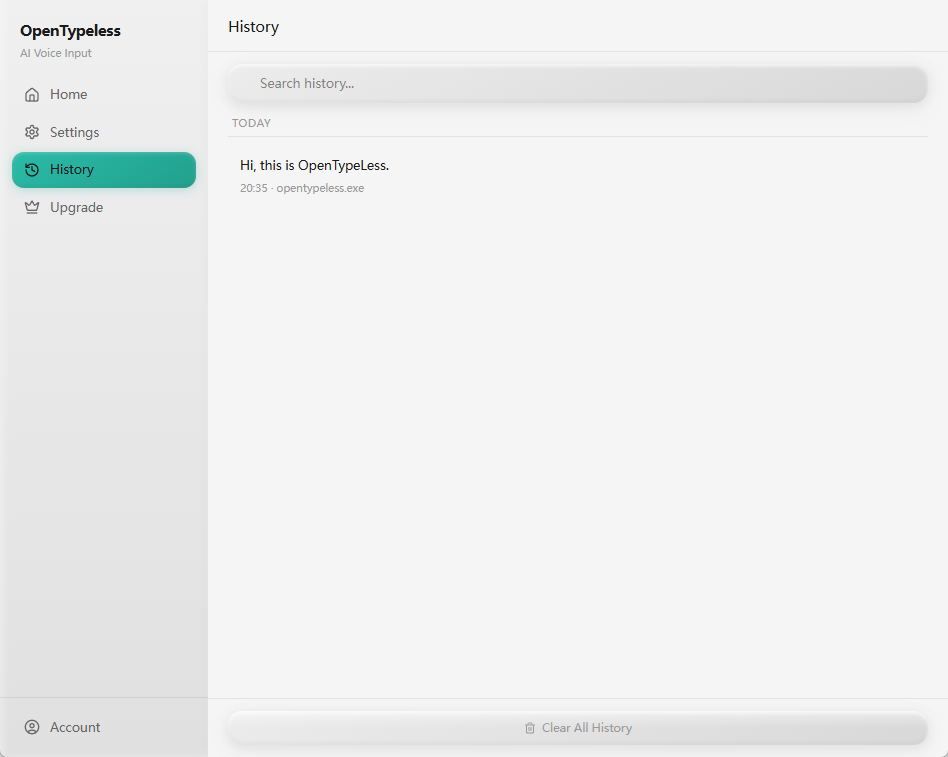
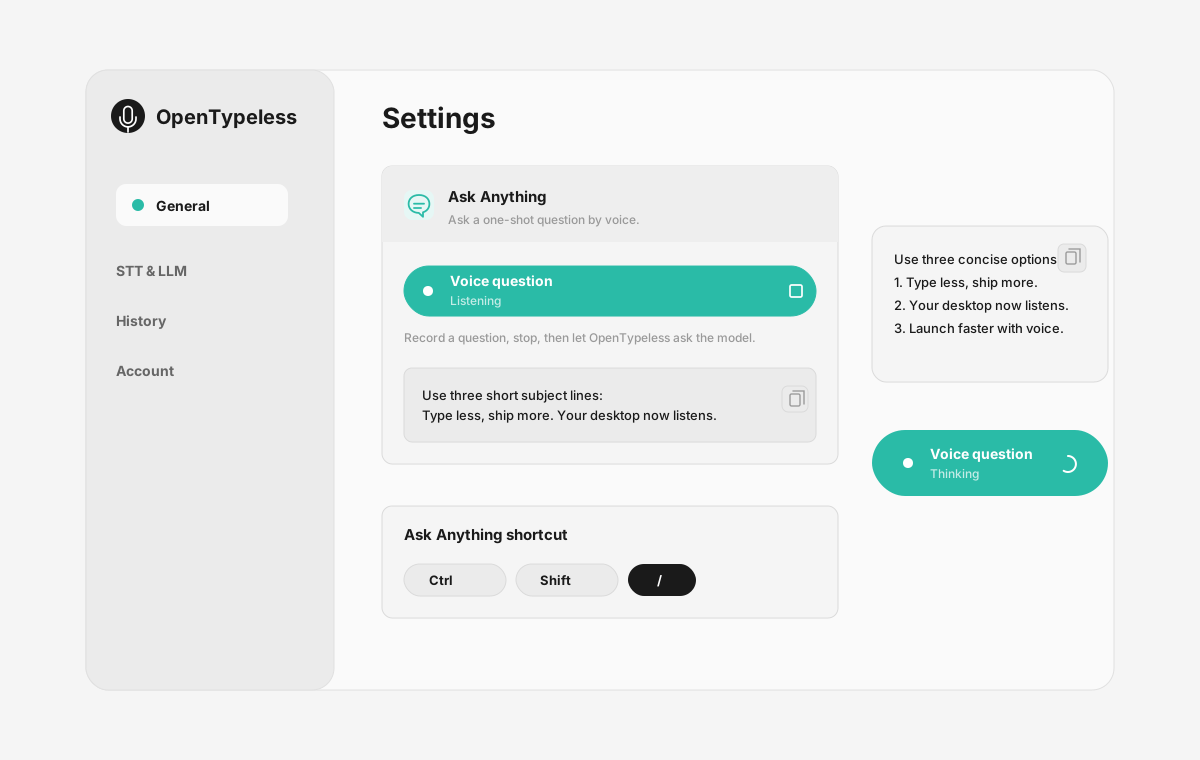
The page is not just a feature list: these are the product UI surfaces users touch when they dictate, configure, review output, and ask by voice.
| Workflow point | Product evidence | Why it matters |
|---|---|---|
| Ask Anything | Voice question panel | Ask a question by voice, wait while it is processed, and read the final answer in a small floating note. |
| Clipboard fallback | Capture and insert | When a compositor or app blocks simulated typing, clipboard output keeps the workflow usable without pretending every Linux target behaves the same. |
| Provider portability | Provider settings | Keep the desktop workflow stable while switching STT or LLM providers for latency, cost, language support, or privacy. |
| Technical writing | History and review | Dictate issue comments, release notes, documentation, and chat replies with custom vocabulary and AI cleanup. |
Where Linux users get practical value
The page targets users who already understand Linux tradeoffs and want the workflow to be explicit.
Clipboard fallback
When a compositor or app blocks simulated typing, clipboard output keeps the workflow usable without pretending every Linux target behaves the same.
Provider portability
Keep the desktop workflow stable while switching STT or LLM providers for latency, cost, language support, or privacy.
Technical writing
Dictate issue comments, release notes, documentation, and chat replies with custom vocabulary and AI cleanup.
Local experimentation
Linux users who enjoy local tools can test local STT and LLM providers while keeping the same front-end workflow.
FAQ
Short answers for users comparing tools.
Does OpenTypeless work on Ubuntu?
OpenTypeless supports Linux desktop builds. Use the latest release asset and test microphone access, hotkey behavior, and output mode on your specific Ubuntu desktop session.
Does it work on Wayland?
Wayland behavior can vary by compositor and app. If keyboard simulation is restricted, clipboard output is the recommended fallback.
Can Linux speech to text run offline?
Yes, if you configure supported local providers and your machine has enough resources. Cloud providers are easier to start with, while local providers improve control and privacy.
Is it only for developers?
No. Developers are a strong fit, but the same workflow works for writers, students, support teams, multilingual users, and anyone who writes across desktop apps.
Related guides
Useful next pages for the same search journey.
Try the desktop voice input workflow
Start with the default setup, then tune providers, prompts, shortcuts, and local mode as your workflow becomes clearer.