Voice typing app for Windows that works in any desktop app
OpenTypeless turns Windows 10 and Windows 11 into a faster voice input workspace: press a hotkey, speak, and paste cleaned-up text into browsers, editors, chat apps, documents, and email.
Why use a separate Windows voice typing app?
Windows Voice Typing is useful for quick notes, but it is tied to the built-in dictation experience. Power users usually need more control: provider choice, better punctuation, vocabulary handling, and output that is ready to paste into work apps.
OpenTypeless is built for that heavier daily workflow. It lets you choose the speech-to-text engine, send the raw transcript through AI cleanup, keep a custom dictionary for names or technical terms, and use the same flow across desktop apps.
When built-in Windows dictation is enough, and when it is not
This page is meant to help users choose honestly, not pretend every person needs a new tool.
You only dictate short, casual text
If you just need a sentence in a search box or a quick message, the built-in Windows tool is usually fine and costs nothing to try.
You write longer text in many apps
OpenTypeless is better when you move between browsers, editors, documents, email, and chat, and want one consistent hotkey-driven workflow.
Raw transcripts still need cleanup
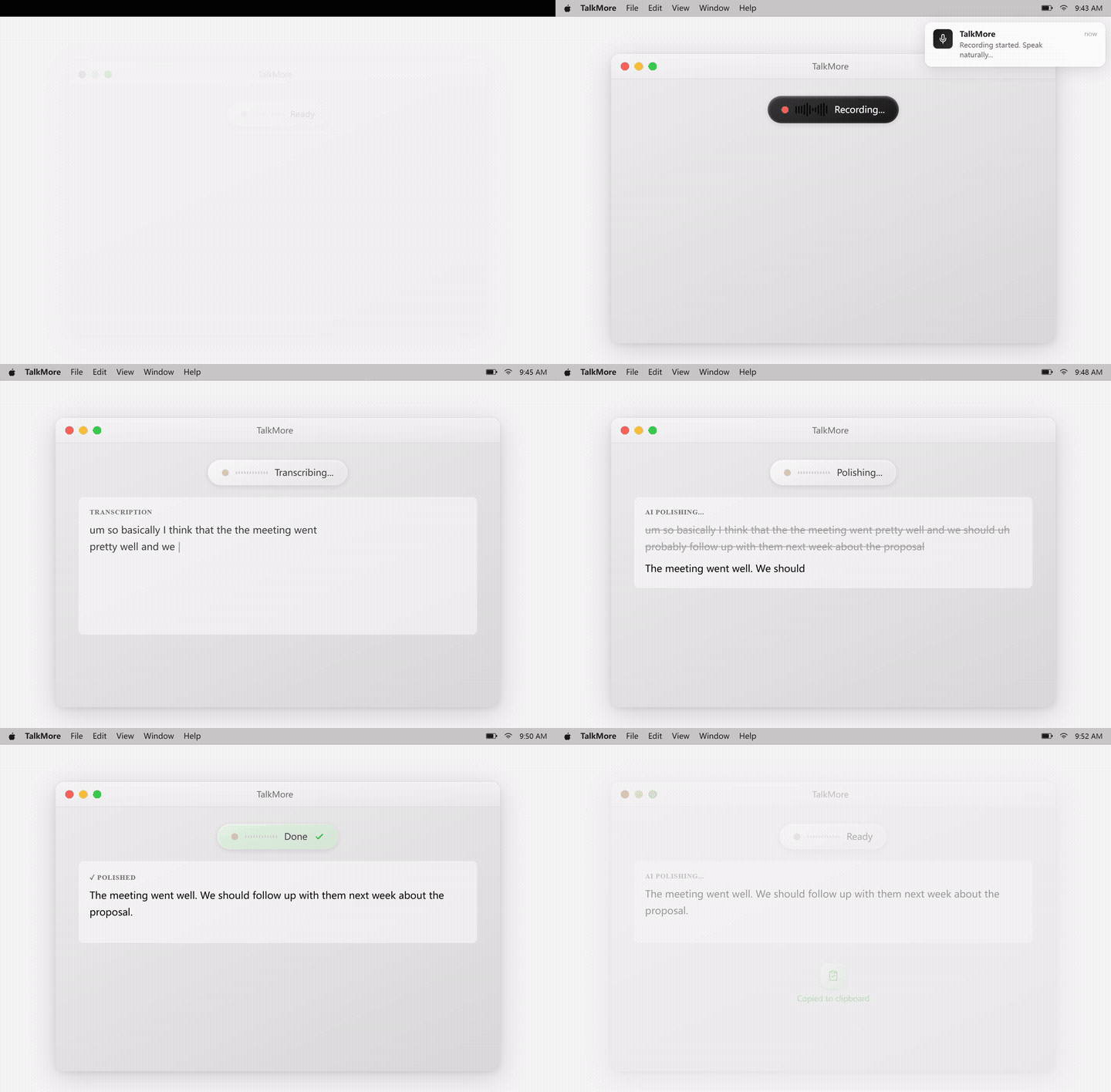
AI polishing removes filler words, fixes grammar, improves punctuation, and can adapt the tone for emails, notes, support replies, or technical writing.
Windows setup in a few minutes
The simplest path is cloud STT plus AI polish. Privacy-focused users can switch to local providers later.
Download the Windows build
Install OpenTypeless from the download page, then launch the desktop app.
Choose your speech provider
Start with Deepgram for low latency or Whisper/Groq for strong multilingual accuracy. Add your own API key or use a configured plan.
Pick an AI polishing provider
Use OpenAI, Claude, Gemini, DeepSeek, Ollama, or another supported LLM to clean up the transcript before insertion.
Add custom words
Put product names, people names, acronyms, and technical vocabulary into the dictionary so they survive transcription.
Windows voice typing comparison
The practical difference is not whether speech becomes text. It is how much editing remains after the transcript appears.
| Need | Default path | OpenTypeless path |
|---|---|---|
| Works across desktop apps | Good for many text fields, but behavior can vary by app | Designed as an app-agnostic desktop voice input workflow |
| Speech engine choice | Uses the system dictation stack | Choose Whisper, Deepgram, Groq, AssemblyAI, Ollama, and more |
| Text cleanup | Basic punctuation and capitalization | LLM polishing for grammar, tone, formatting, and filler removal |
| Custom vocabulary | Limited user control | Custom dictionary for names, jargon, commands, and product terms |
| Offline option | Depends on Windows and language settings | Can run local STT and local LLMs through Ollama |
Built for the messy parts of daily voice input
The product is aimed at the places where normal dictation starts to feel like extra work.
Longer writing sessions
Draft emails, issue comments, notes, posts, and documentation without manually cleaning every sentence afterward.
Technical vocabulary
Add uncommon names, code terms, tool names, and brand words so they are less likely to be rewritten incorrectly.
Provider fallback
If one provider is slow, expensive, unavailable, or weak for a language, switch instead of replacing the whole app.
Portable habits
The same workflow is available on Windows, macOS, and Linux, which helps users who switch machines.
FAQ
Short answers for users comparing tools.
Is OpenTypeless a replacement for Windows Voice Typing?
It can be, but it does not have to be. Windows Voice Typing is fine for simple dictation. OpenTypeless is for users who want provider choice, AI cleanup, custom vocabulary, and a consistent desktop workflow.
Does it work on Windows 10?
Yes. The Windows page is written for Windows 10 and Windows 11 users. Always use the latest release from the download page for the current installer.
Can I use Whisper on Windows?
Yes. OpenTypeless can use Whisper-compatible providers and can also run local speech-to-text through Ollama if your machine is configured for it.
Is this free?
OpenTypeless is open source and free to download. Cloud providers may charge for usage when you bring your own API keys. Local providers can reduce or remove cloud usage.
Related guides
Useful next pages for the same search journey.
Try the desktop voice input workflow
Start with the default setup, then tune providers, prompts, shortcuts, and local mode as your workflow becomes clearer.