Typeless on Linux: Set Up OpenTypeless for Ubuntu, Fedora, and Arch
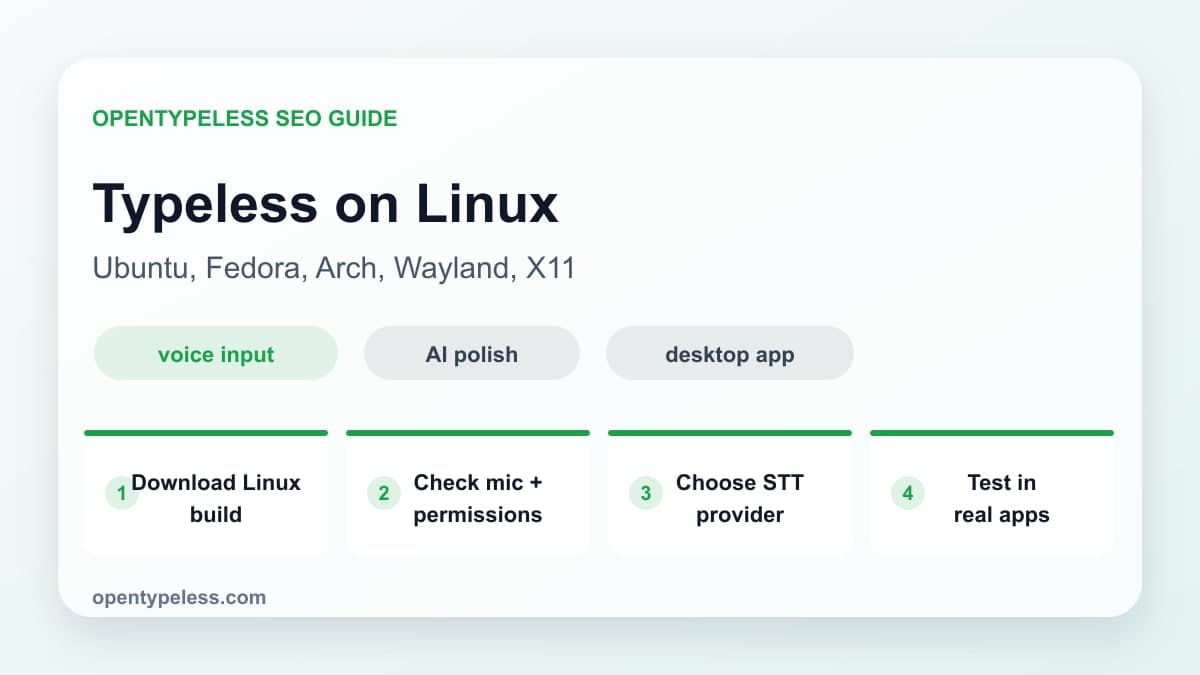
Linux users search for Typeless because they want the same fast AI voice input workflow that Mac and Windows users get: press a hotkey, speak naturally, clean up the transcript with AI, and paste the result into any app. OpenTypeless supports that workflow on Linux, but the setup deserves its own guide because Linux desktop environments handle microphones, global shortcuts, clipboards, and text insertion differently.
Why Linux Voice Input Needs a Different Setup
On Linux, voice input is not just a speech-to-text problem. You also need a reliable way to capture audio, trigger recording from a global shortcut, send audio to the right STT provider, optionally polish the text with an LLM, and insert the final output into the active application. Ubuntu, Fedora, Arch, KDE, GNOME, Wayland, and X11 can each behave slightly differently.
- Ubuntu and Fedora usually use PipeWire by default, while older systems may still expose PulseAudio behavior.
- Wayland is stricter about global shortcuts, simulated typing, and clipboard automation than X11.
- Desktop portals and sandboxed apps can change microphone permission prompts.
- Some apps accept pasted text reliably, while terminal emulators and remote desktops may need extra testing.
- Provider choice changes latency, data flow, and operations; measure hosted and local or self-hosted routes under the intended configuration.
Step 1: Download the Linux Build
Start from the official OpenTypeless download page at opentypeless.com/download. Use the current Linux package or release artifact for your distribution, and avoid random third-party mirrors. OpenTypeless is open source, so you can also review the release on GitHub if you want to verify what you are installing.
- Use the official download page for the latest Linux build.
- Pick the package format that matches your system when multiple formats are available.
- Launch the app once from your desktop environment so it can request permissions normally.
- Keep the app updated, especially when provider settings or Linux desktop integration changes.
- If you build from source, follow the repository instructions and test the packaged app, not only the dev server.
Step 2: Check Microphone and Desktop Permissions
Before debugging STT quality, confirm that Linux is actually sending clean audio to OpenTypeless. Open your system sound settings, select the correct input device, speak at a normal distance, and watch the input meter. If the meter is silent or clipping, the transcription provider cannot fix that later.
- Test the microphone in your desktop sound panel before testing OpenTypeless.
- Disable the wrong laptop, monitor, or headset microphone if Linux keeps selecting it.
- Allow microphone access when the desktop environment prompts for it.
- Keep OpenTypeless running in the background if you want global hotkey capture.
- Check whether your desktop environment reserves the same hotkey for another action.
Wayland vs X11: What Changes
Wayland improves security by limiting how apps observe global keyboard events and simulate input. That is good for privacy, but it can affect voice input workflows that depend on a global hotkey and automatic text insertion. OpenTypeless can still record and transcribe, but if the hotkey does not fire or the final text does not paste into the focused app, test your desktop shortcut settings and compare the behavior in an X11 session.
Step 3: Choose a Speech-to-Text Provider
OpenTypeless is provider-flexible. That matters on Linux because different users optimize for different things: low latency, low cost, multilingual accuracy, local processing, or full control over API keys. You can start with a fast cloud provider, then switch later if your privacy or language needs change.
- Start with a hosted STT route when you want minimal Linux model setup; review its current authentication, data, and billing documentation.
- Choose a Custom Whisper-compatible endpoint when you can operate the host; document its URL, model, dependencies, logs, and update traffic.
- OpenAI Whisper is a familiar option when you already use OpenAI APIs.
- For sensitive audio, evaluate a local or self-hosted Custom Whisper-compatible endpoint and verify its host, dependencies, logs, and network traffic.
- Try two providers with the same microphone and prompt before blaming Linux for accuracy problems.
Step 4: Add AI Text Polishing
Raw speech-to-text is rarely the final text you want to paste. People repeat themselves, change direction mid-sentence, and use filler words. The AI polishing step turns rough dictation into a clean email, Slack reply, issue comment, note, or documentation paragraph while preserving the meaning of what you said.
- Use a professional polish prompt for email, support replies, and customer communication.
- Use a concise technical prompt for code comments, commit messages, and GitHub issues.
- Add custom dictionary terms for project names, acronyms, model names, and APIs.
- Choose BYOK, local LLM, or TalkMore cloud words depending on how much setup you want.
Step 5: Test in Real Linux Apps
Do not stop after one successful transcription inside the OpenTypeless window. The value of Typeless on Linux is that it works across your real daily apps. Test the complete loop: hotkey, record, transcribe, polish, paste, and review.
- VS Code or JetBrains IDEs for comments, documentation, and issue notes.
- Slack, Discord, or Teams for fast replies.
- Gmail, Fastmail, or your browser-based support tool for polished email drafts.
- Obsidian, Logseq, Notion, or plain Markdown files for notes.
- Terminal workflows where you dictate explanations, not dangerous shell commands.
- Browser forms and CMS editors where traditional Linux dictation often feels fragile.
A Practical Linux Workflow
A repeatable Linux voice-input workflow starts with one reliable hotkey, representative speech, a configured STT route, and a quick review before sending. Measure whether it improves your own task rather than assuming a universal ranking.
1. Download OpenTypeless from opentypeless.com/download
2. Confirm your Linux microphone input is clean
3. Choose Groq, Deepgram, Whisper, or local STT
4. Configure AI polishing and custom dictionary terms
5. Test the hotkey and paste behavior in your real apps
named BYOK. Review the final text before sending
Troubleshooting
- Microphone not detected: check system sound settings, input source, PipeWire or PulseAudio state, and desktop permission prompts.
- Hotkey not firing: change the shortcut, check desktop conflicts, and test whether Wayland is limiting global key capture.
- Text not pasting: try a plain text editor first, then compare browser, terminal, IDE, and chat app behavior.
- If transcription feels slow, measure each stage, compare another configured STT route, and check whether the network or local host is the bottleneck.
- Technical terms are wrong: add them to the custom dictionary and include them in your polish prompt.
- Output sounds too formal: edit the polish prompt so the LLM keeps your natural tone.
Privacy and Local-First Options
OpenTypeless is useful on Linux because it does not force one privacy model. You can bring your own provider keys for direct API control, use TalkMore when you want a managed cloud path, or run local models when sensitive dictation should stay on your machine. The right choice depends on the content you dictate, your latency tolerance, and how much provider setup you want to manage.
Should Linux Users Choose OpenTypeless?
Yes, if you want an open-source AI voice input app that works across Linux apps and lets you choose the transcription and polishing providers yourself. OpenTypeless is especially strong for developers, writers, founders, support teams, and anyone who wants voice typing without being locked into one cloud provider or one operating system.