Typeless for Windows: Use OpenTypeless on Windows 10 and Windows 11
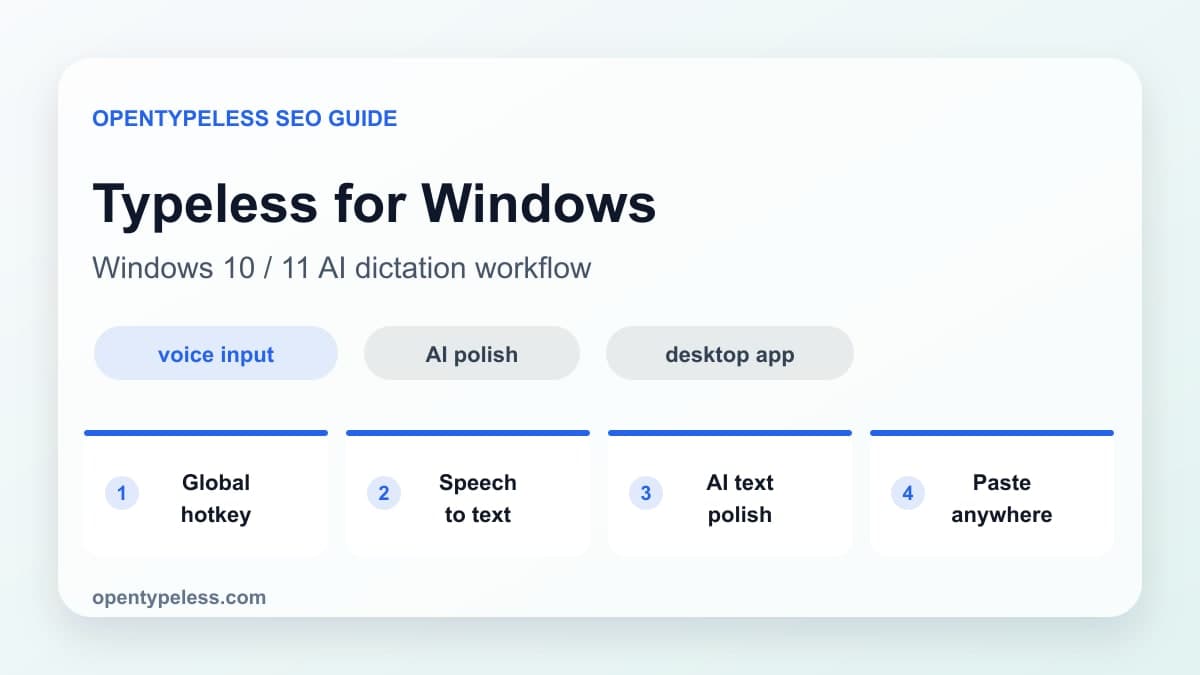
If you are looking for Typeless for Windows, the practical question is simple: can you press one shortcut, speak naturally, and get polished text in any Windows app? OpenTypeless is built for that workflow on Windows 10 and Windows 11, with provider choice, AI text polishing, custom dictionary terms, and optional local-first settings.
Why Windows Voice Typing Is Not Enough
Built-in Windows voice typing is convenient, but it is still mostly raw dictation. It does not give you deep provider control, it does not preserve a domain-specific dictionary the way a dedicated workflow can, and it does not consistently turn rough speech into a clean issue comment, email, or documentation paragraph.
- Use OpenTypeless when you want AI cleanup after transcription.
- Choose Groq, Deepgram, Whisper, or another STT provider instead of accepting one default engine.
- Add project names, API names, and acronyms to the custom dictionary.
- Use the same voice input workflow in browsers, editors, chat apps, and notes.
- Keep BYOK or local options available when privacy matters.
Step 1: Install and Pin the Workflow
Download OpenTypeless from opentypeless.com/download, install the Windows build, and launch it once from the Start menu. Then choose a global hotkey that does not conflict with your editor, browser, or screen capture tools. Use a plain, repeatable shortcut and record it in the migration checklist.
- Test the microphone in Windows Sound settings before blaming the STT provider.
- Pick one hotkey and use it everywhere for a week.
- Start with a cloud STT provider for speed, then try local mode later.
- Review the final polished text before sending customer or work messages.
Windows Workflow Examples
OpenTypeless is strongest on Windows when the destination app changes all day. You might dictate in Outlook, then a browser CMS, then VS Code, then Slack. The point is not to replace every keystroke; it is to remove the friction from paragraphs, replies, notes, and comments.
- Email drafts and support replies
- GitHub issues, pull request comments, and code review notes
- Meeting notes and follow-up summaries
- Long-form writing in Google Docs, Notion, or Markdown editors
- Internal chat messages that need to sound clear without over-editing