Mac speech to text with a shortcut that feels native
OpenTypeless gives Mac users a simple Fn voice input flow for everyday writing: record from anywhere, transcribe with your chosen STT provider, polish the text, and insert it into the current app.

Mac already has Dictation. Why add OpenTypeless?
Apple Dictation is good for simple input. The friction starts when you want a stable app-wide workflow, better control over the speech engine, consistent post-processing, or a custom dictionary for names and professional vocabulary.
OpenTypeless now uses a Typeless-style Fn default for dictation and Fn+Space for Ask Anything. If you previously searched for an Option+/ style shortcut, you can still choose a nearby custom shortcut in settings.
Shortcut choices on Mac
The default shortcut matters because it is the first thing a Mac user feels.
It matches the current Mac default
Fn is simple to explain, easy to press, and aligned with the current OpenTypeless desktop shortcut model.
Custom shortcuts still work
If another workflow trained you on Option+/ or a similar shortcut, use settings to choose a custom combination that fits your keyboard.
Command combinations collide quickly
Many Command shortcuts already belong to apps and macOS, so OpenTypeless keeps the default minimal and configurable.
Mac setup checklist
A good Mac setup should be predictable before the user starts changing providers.
Install the macOS build
Download OpenTypeless, open it, and allow any required macOS permissions for microphone access and text insertion.
Confirm the shortcut
Use Fn as the current Mac default. If another app or keyboard layout conflicts, choose a nearby custom shortcut from settings.
Choose STT and polishing
Select an STT route for transcription and a separate LLM route for polishing. For a local-first Mac test, document the Custom Whisper endpoint and any Ollama host, then verify both network paths.
Test in your real apps
Try Notes, Slack, Chrome, VS Code, and email so you can catch permission or shortcut conflicts early.
Mac Dictation vs OpenTypeless
Apple Dictation is convenient. OpenTypeless is for users who want more control over the entire writing result.
| Need | Default path | OpenTypeless path |
|---|---|---|
| Shortcut clarity | System-controlled Dictation shortcut, often Fn-based | Fn dictation default with configurable hotkey |
| Provider control | Uses Apple system dictation | Pick STT providers based on speed, cost, language, or privacy |
| AI cleanup | Basic transcript output | Optional LLM polishing before the text is inserted |
| Custom words | Limited control for product names and jargon | Custom dictionary for repeated vocabulary |
| Cross-platform consistency | Mac-only system behavior | Same app model on macOS, Windows, and Linux |
What the workflow looks like in the product UI
The page is not just a feature list: these are the product UI surfaces users touch when they dictate, configure, review output, and ask by voice.
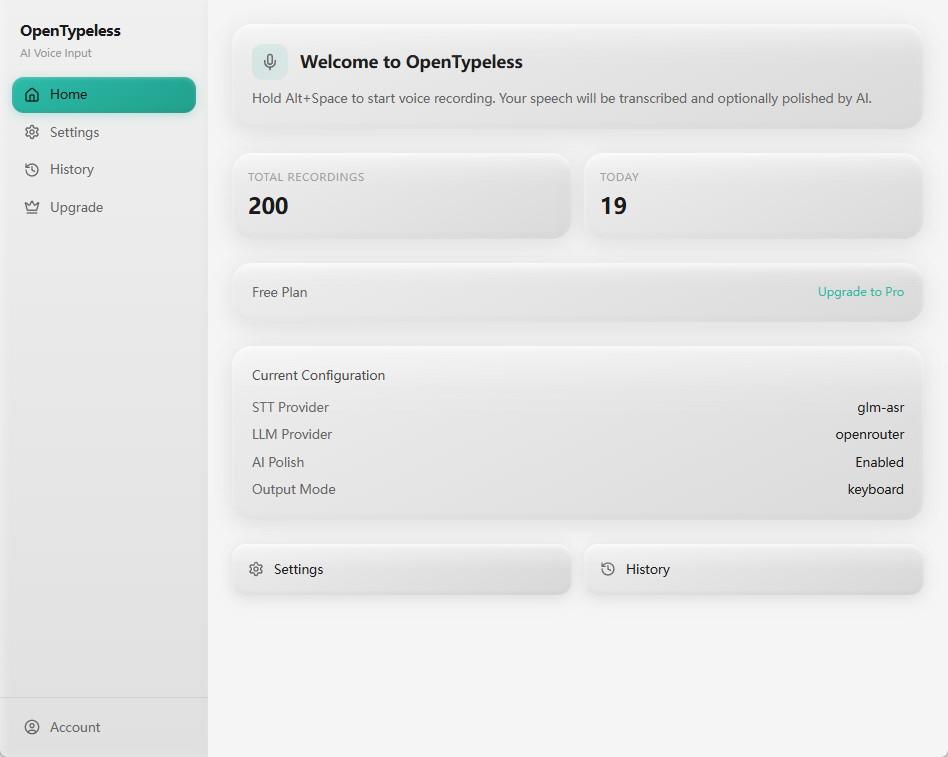
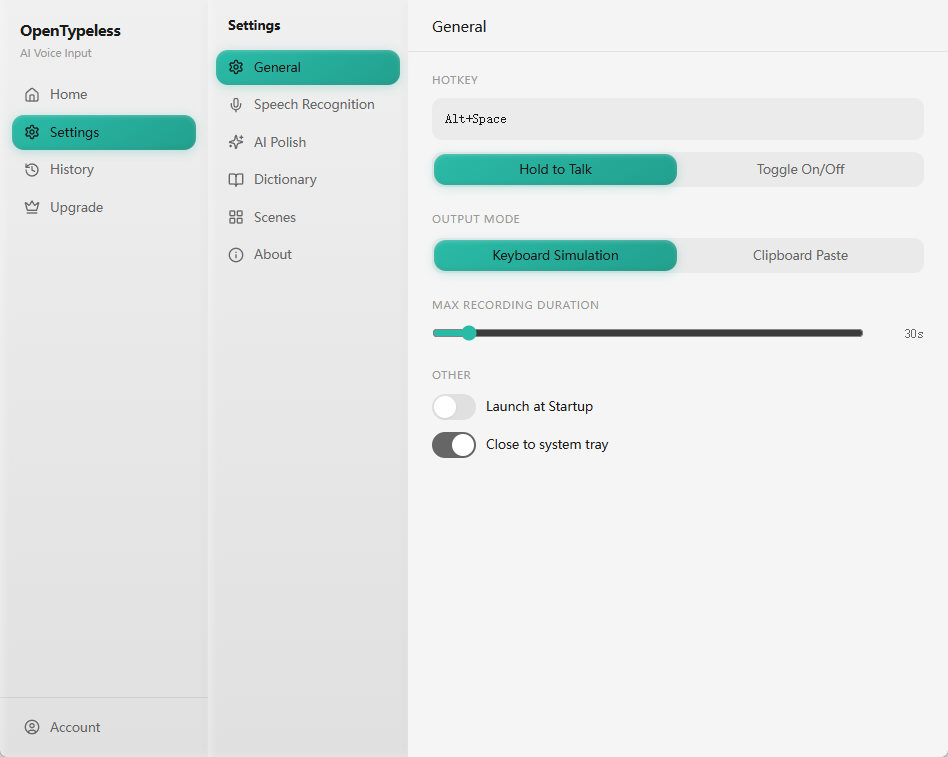
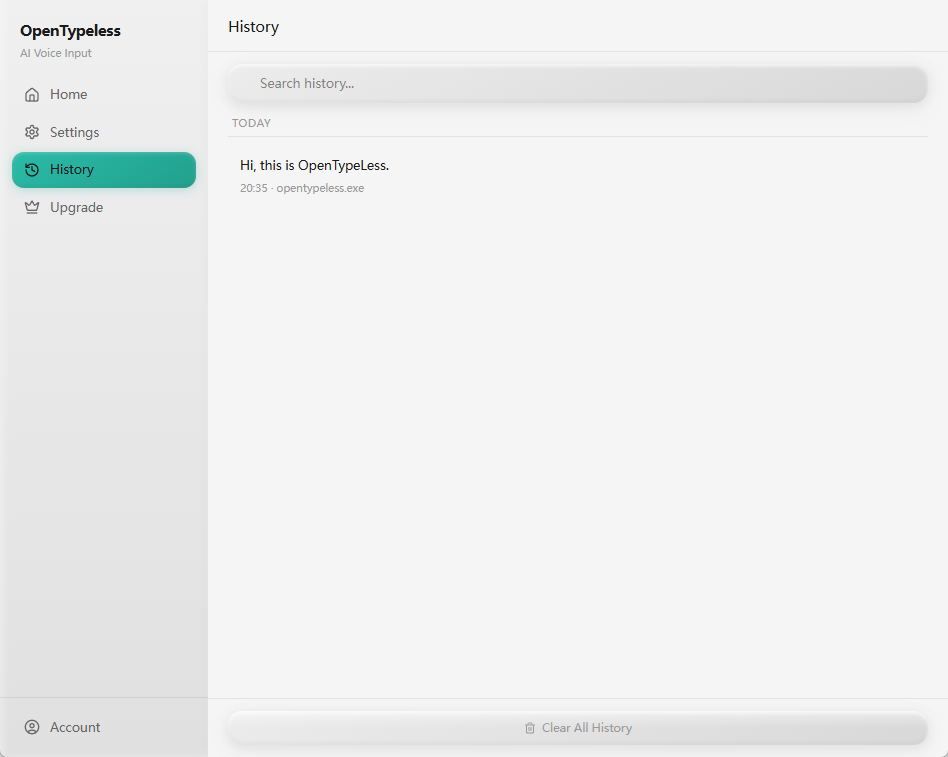
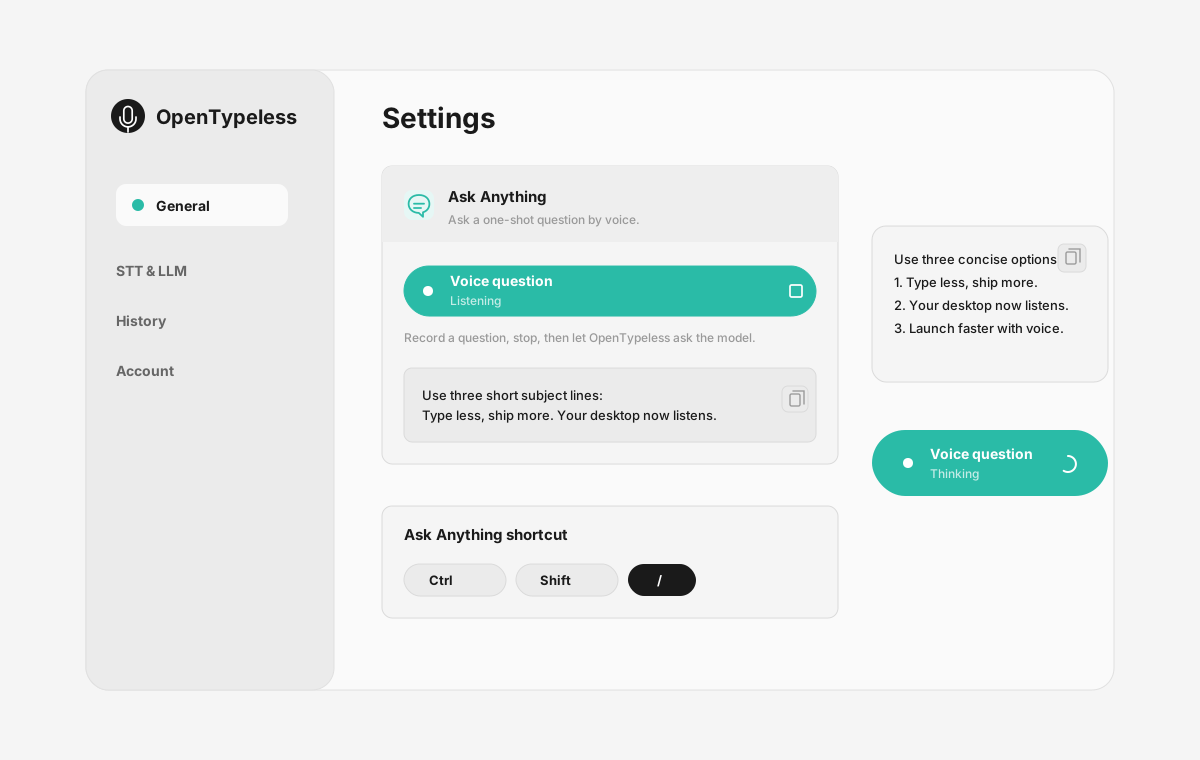
| Workflow point | Product evidence | Why it matters |
|---|---|---|
| Ask Anything | Voice question panel | Ask a question by voice, wait while it is processed, and read the final answer in a small floating note. |
| Writing in any app | Capture and insert | Use the same voice input habit in browsers, editors, documents, chat tools, and note apps. |
| Polished output | Provider settings | Turn spoken fragments into clearer sentences before the text reaches the target app. |
| Language flexibility | History and review | Choose providers that perform well for your language or accent instead of accepting one fixed engine. |
Where Mac users feel the difference
The most useful improvements are practical: fewer corrections, fewer confusing shortcuts, and less app switching.
Writing in any app
Use the same voice input habit in browsers, editors, documents, chat tools, and note apps.
Polished output
Turn spoken fragments into clearer sentences before the text reaches the target app.
Language flexibility
Choose providers that perform well for your language or accent instead of accepting one fixed engine.
Local-first option
For a local-first configuration, use a local or self-hosted Custom Whisper-compatible STT endpoint and a separate local LLM route; verify every endpoint and dependency before deciding where audio or text is processed.
FAQ
Short answers for users comparing tools.
What should I press on Mac?
The current Mac default is Fn for dictation and Fn+Space for Ask Anything. You can still configure a different shortcut in settings.
Can I use an Option+/ style shortcut?
Yes. Fn is the current default, but OpenTypeless lets you configure the hotkey if another shortcut fits your keyboard or muscle memory better.
Does OpenTypeless replace Apple Dictation?
It can replace it for daily writing, but Apple Dictation remains useful for simple cases. OpenTypeless is better when you need AI cleanup, provider choice, custom vocabulary, and consistent app-wide behavior.
Can I use it privately on Mac?
Privacy depends on the route you configure. Trace one sample from microphone to the Custom Whisper STT host and, if you use Ollama for LLM polishing, through that separate host; review logs and retention for each.
Related guides
Useful next pages for the same search journey.
Try the desktop voice input workflow
Start with the default setup, then tune providers, prompts, shortcuts, and local mode as your workflow becomes clearer.