Apple Dictation alternative for desktop dictation
Choose Apple Dictation for built-in Mac text entry. Choose OpenTypeless when configurable speech and polishing routes or a shared desktop workflow matter. Voice Control remains the appropriate Apple feature for hands-free navigation.
OpenTypeless product UI
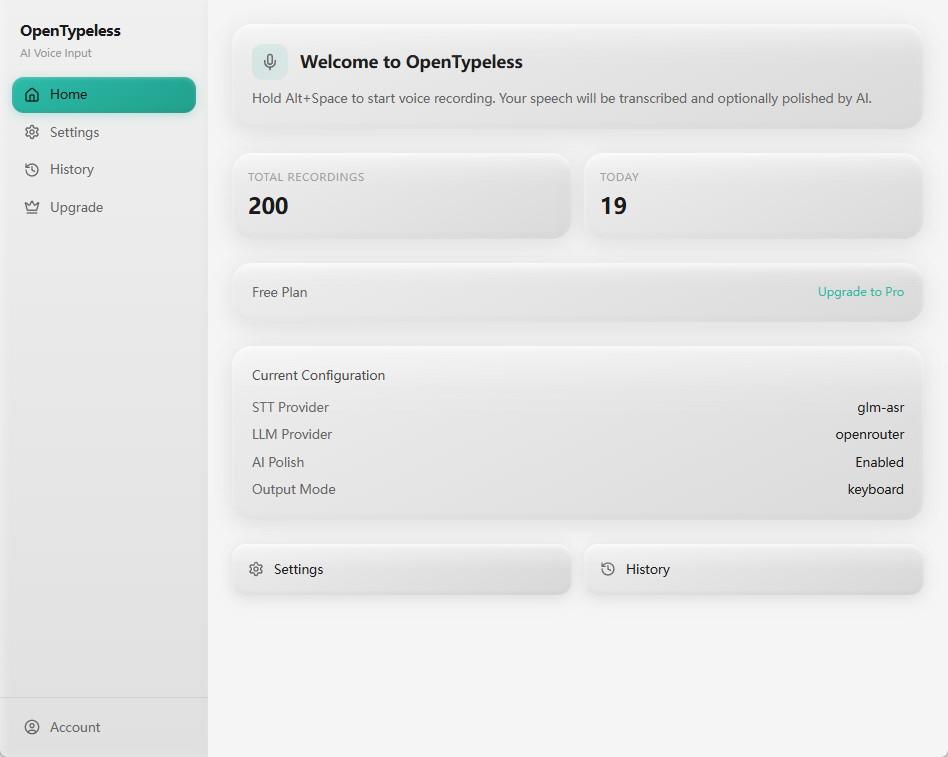
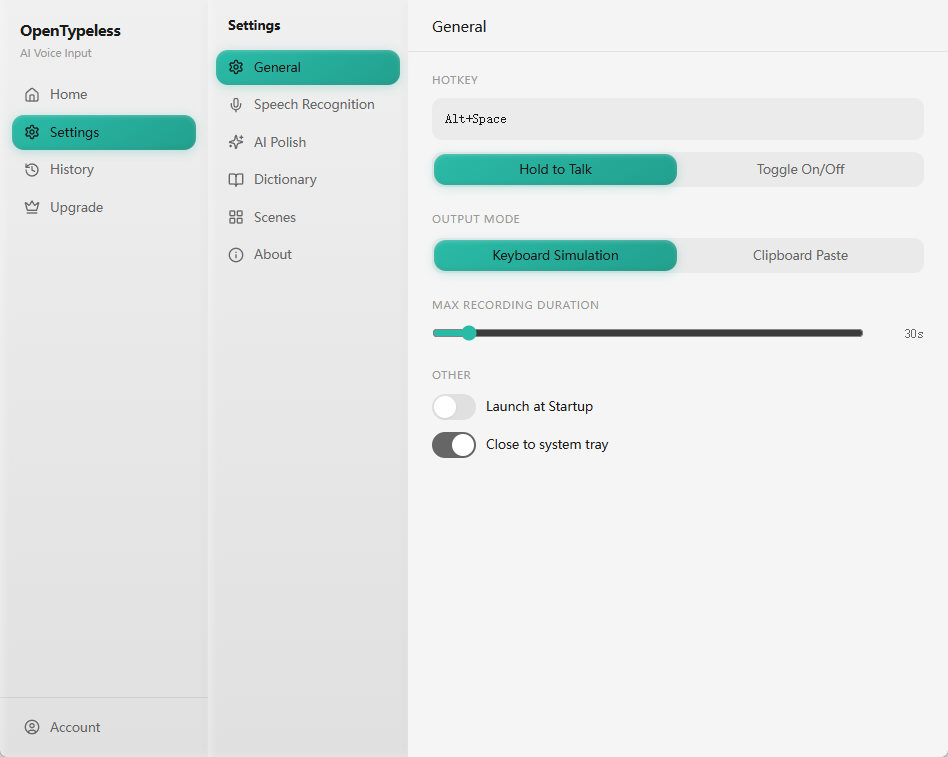
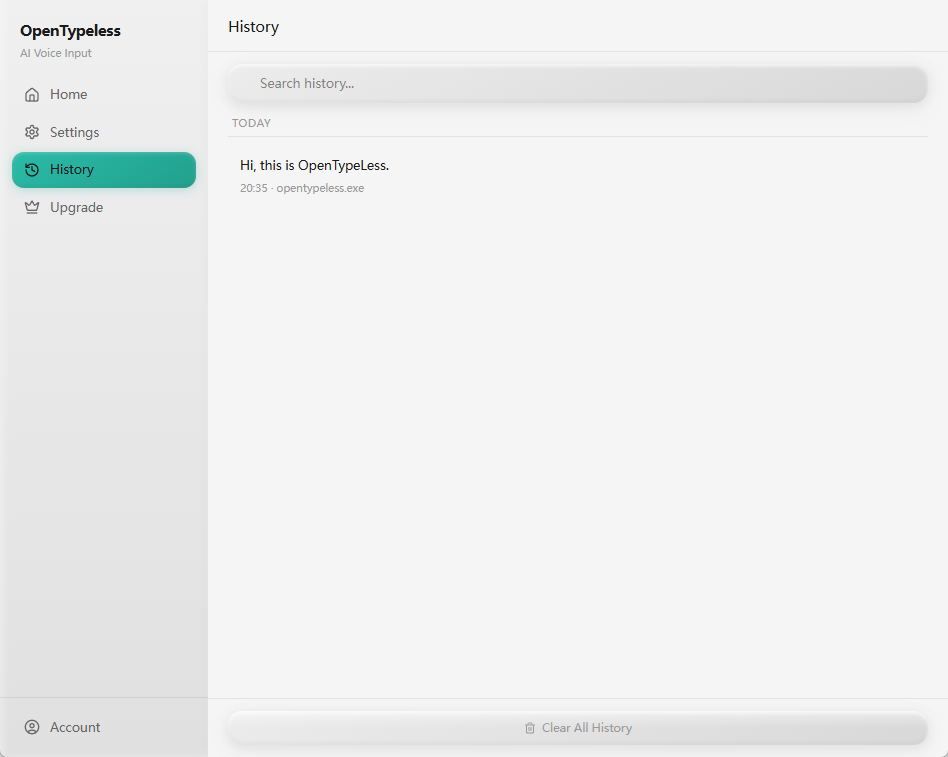
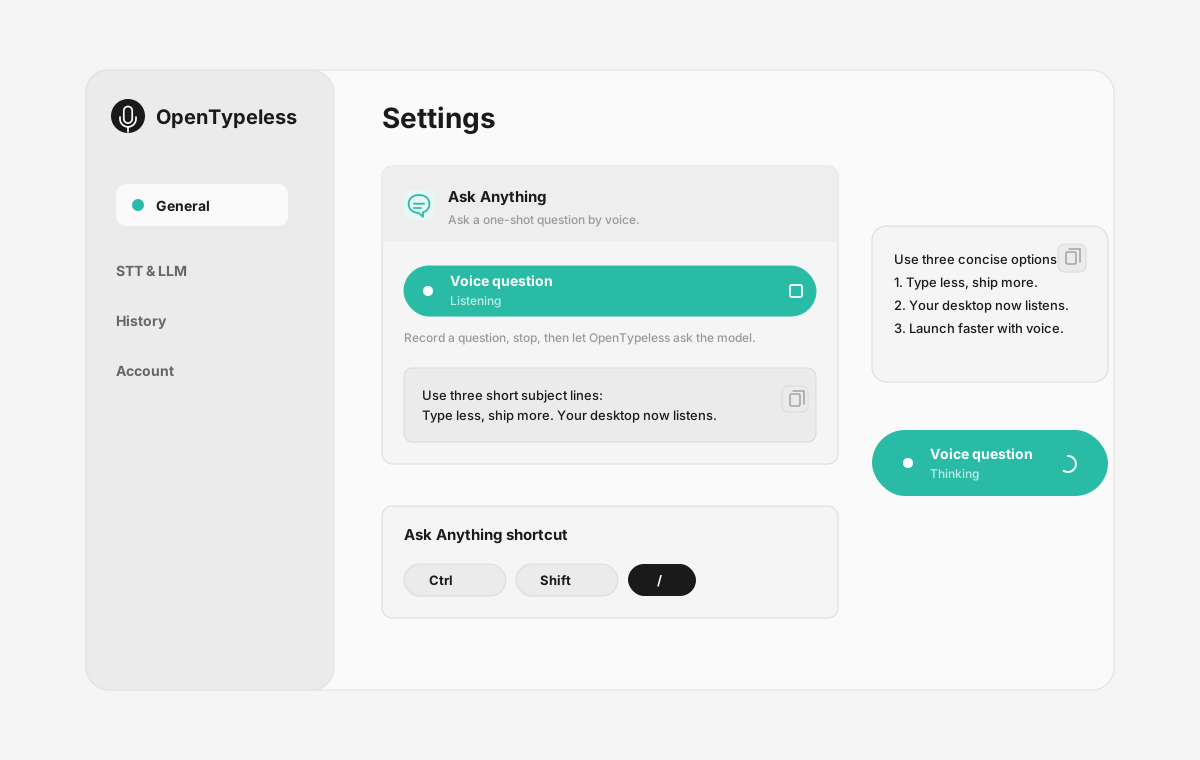
Before comparing feature lists, see the product UI states users touch when switching from Apple Dictation.
| Stage | Evidence | Why it matters |
|---|---|---|
| Desktop capture | A visible recording surface instead of a generic feature claim. | Users comparing Apple Dictation can see where OpenTypeless fits into daily typing. |
| Provider control | Settings expose STT and LLM choices in one place. | The page shows the concrete control behind BYOK, local, and cloud workflows. |
| Output review | History gives users a place to check previous voice input results. | This makes the workflow feel inspectable instead of a one-shot black box. |
| Ask Anything | A small floating answer note handles voice questions without opening a chat app. | Users can compare not only dictation, but the second workflow: ask by voice and read the result. |
Plan your switch from Apple Dictation
Configure the replacement workflow before retiring the shortcuts and vocabulary you use today.
- List the apps, editable fields, language, and dictionary terms that your current workflow must preserve.
- Install the appropriate OpenTypeless desktop build and configure an STT route. Configure optional LLM polishing separately.
- Set a shortcut that does not conflict with the previous app, and add your important terminology to the dictionary.
- Dictate a representative passage, review insertion and corrections, and verify the selected routes before switching daily work.
Official documentation checked 2026-10-08. Edition and configuration limits are stated per row. No controlled speed or accuracy winner is claimed.
Feature Comparison
OpenTypeless vs Apple Dictation
| Feature | OpenTypeless | Apple Dictation |
|---|---|---|
| Price and plan | MIT desktop app; provider and managed-service costs are separate | Included macOS feature; no separate dictation subscription in this guideSource |
| Platform | Windows / macOS / Linux | macOS Dictation; mobile Apple dictation is a separate implementationSource |
| Source and license | MIT License | An operating-system feature; this guide does not publish a source-code licenseSource |
| Speech recognition | 7 named BYOK STT providers | Apple Dictation, started in Keyboard settings or from an editable fieldSource |
| Text processing | 11 providers (BYOK) | Punctuation and formatting commands; a selectable LLM route is not documentedSource |
| Languages | 99 languages | Language and region availability varies; automatic punctuation is language-dependentSource |
| Custom vocabulary | Yes | General dictation differs from Voice Control custom vocabularySource |
| Data and processing route | A Custom Whisper-compatible endpoint is the local or self-hosted STT path; whether audio leaves the machine depends on the configured endpoint and network. Ollama is a local LLM provider for text polishing and other LLM work. | Keyboard settings identify whether general dictation is processed on-deviceSource |
| Primary workflow | Desktop dictation, optional transcript polishing, insertion, and one-off voice questions | Text entry on Mac; full computer navigation belongs to Voice ControlSource |
Choose by workflow
Choose Apple Dictation for built-in Mac text entry. Choose OpenTypeless when configurable speech and polishing routes or a shared desktop workflow matter. Voice Control remains the appropriate Apple feature for hands-free navigation.
Speech recognition route
Apple Dictation, started in Keyboard settings or from an editable field
Text processing
Punctuation and formatting commands; a selectable LLM route is not documented
Source and license
An operating-system feature; this guide does not publish a source-code license
Platform fit
macOS Dictation; mobile Apple dictation is a separate implementation
Switching from Apple Dictation
Quick Migration
Choose Apple Dictation for built-in Mac text entry. Choose OpenTypeless when configurable speech and polishing routes or a shared desktop workflow matter. Voice Control remains the appropriate Apple feature for hands-free navigation.
When Apple Dictation fits
We respect the competition
Text entry on Mac; full computer navigation belongs to Voice Control
Apple Dictation, started in Keyboard settings or from an editable field
Choose Apple Dictation for built-in Mac text entry. Choose OpenTypeless when configurable speech and polishing routes or a shared desktop workflow matter. Voice Control remains the appropriate Apple feature for hands-free navigation.
Related setup guides
More practical guides for the same voice input workflow.
Mac speech to text setup
A Mac-focused guide covering the Fn dictation shortcut, built-in Dictation tradeoffs, and permissions.
Read guideVoice typing in any app
Why a desktop voice input workflow can go beyond one browser extension.
Read guideWhisper GUI workflow
How to turn Whisper-style transcription into a desktop dictation workflow.
Read guideFrequently Asked Questions
Does OpenTypeless work with Fn key double-tap like Apple Dictation?
OpenTypeless uses its own global hotkey. The current Mac default is Fn for dictation and Fn+Space for Ask Anything. You can customize shortcuts in settings, while Apple Dictation double-tap behavior remains specific to Apple.
Is OpenTypeless compatible with macOS Sonoma and Sequoia?
Choose the current macOS build for your processor and check its release requirements. Test microphone permissions, the dictation shortcut, and text insertion on your macOS version before relying on it; this guide does not establish compatibility with every OS release.
Can I use both OpenTypeless and Apple Dictation?
You can keep both installed. Give them different shortcuts and test your keyboard layout so that the same key does not activate both workflows.
What happens to my dictation data?
The destination follows your configuration. Capture network traffic for a non-sensitive sample, identify the STT host that receives audio and the separate LLM host that receives transcript text, then review each operator's current logging and retention terms.
Does the AI polishing work in any app?
OpenTypeless can paste polished text into a focused editable field. Permissions, app behavior, and protected fields can affect insertion; test the exact app and field you use.
Ready to Try OpenTypeless?
Free, open-source, and works on Windows, macOS, and Linux. Set up in under 5 minutes.