Typeless for Mac Alternative
A Typeless-style macOS voice typing workflow for users who want open-source code, provider choice, and the option to keep the same habit on Windows or Linux too.
OpenTypeless is not Typeless. If you searched for Typeless on Mac because you want AI voice typing in desktop apps, OpenTypeless supports macOS with a hotkey-driven workflow, open-source code, BYOK STT and LLM providers, custom vocabulary, and local/private configuration options.
OpenTypeless is not affiliated with Typeless. Users looking for the official Typeless product should use Typeless official channels; this page explains an open-source macOS alternative.
Choose by the job you need done
OpenTypeless is not Typeless. If you searched for Typeless on Mac because you want AI voice typing in desktop apps, OpenTypeless supports macOS with a hotkey-driven workflow, open-source code, BYOK STT and LLM providers, custom vocabulary, and local/private configuration options.
You want a Typeless-style workflow on Mac
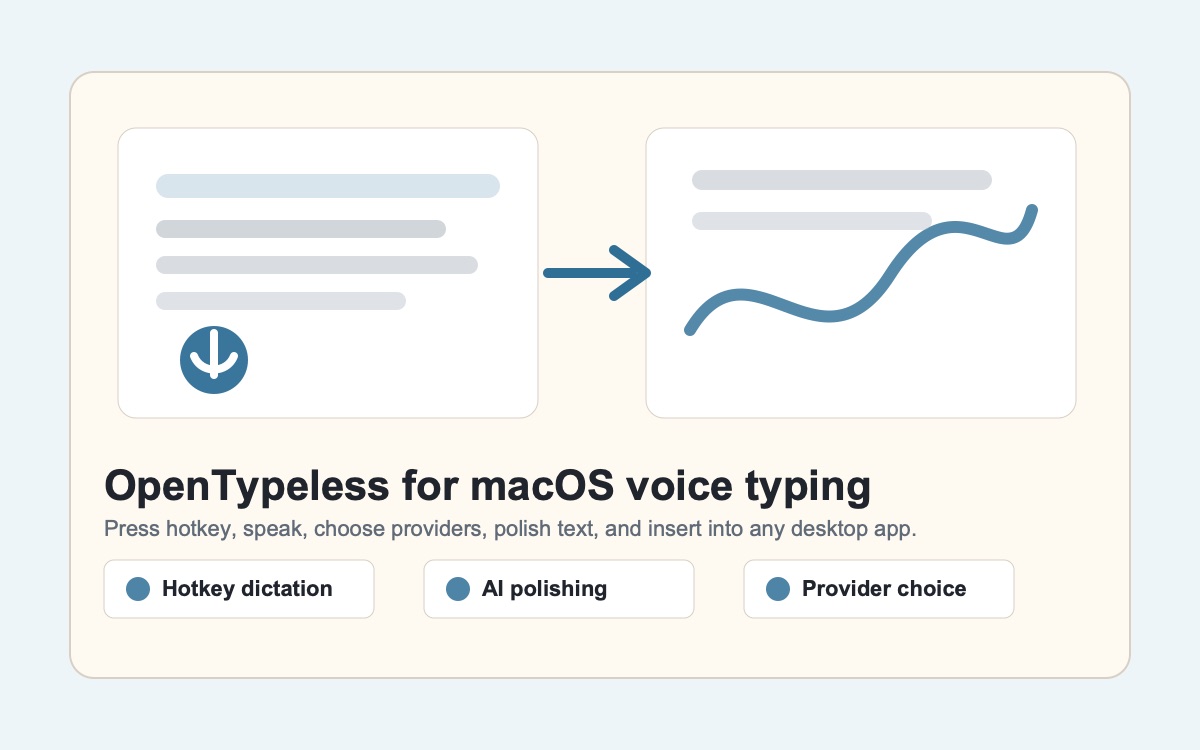
OpenTypeless focuses on the same practical job: press a hotkey, speak, polish the text, and insert it into the current app.
You want source and provider control
Use OpenTypeless when you want public source code, BYOK providers, and the ability to choose local/private paths.
You may use more than one platform
The same workflow can follow you from macOS to Windows or Linux, which matters when work and personal machines differ.
Real OpenTypeless workflow
Generated visuals can explain an idea, but product proof should stay close to the app UI.
Why Mac users search for Typeless
Mac users searching for Typeless usually want fast AI voice typing, not a generic transcription service. They want a shortcut, clean output, and text inserted into the app they already use.
OpenTypeless supports that job on macOS while staying open source and configurable.
How OpenTypeless fits macOS workflows
OpenTypeless can be used alongside macOS writing apps, browsers, notes, chats, issue trackers, and editors through a hotkey workflow.
The main difference is control: you choose STT, choose LLM polishing, add vocabulary, and keep the same workflow across platforms.
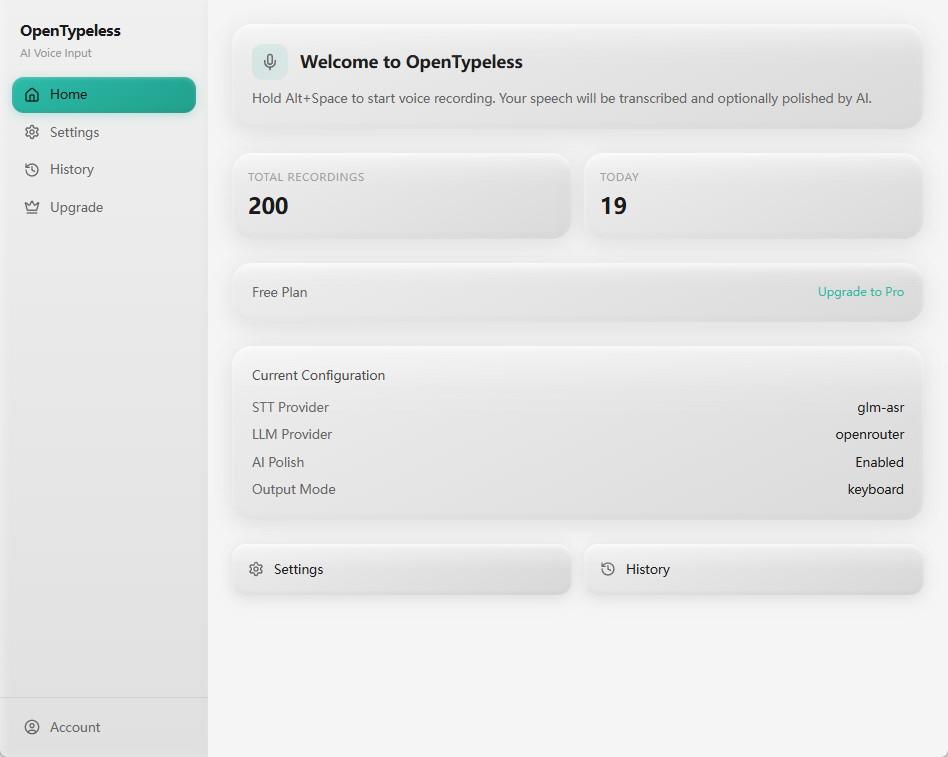
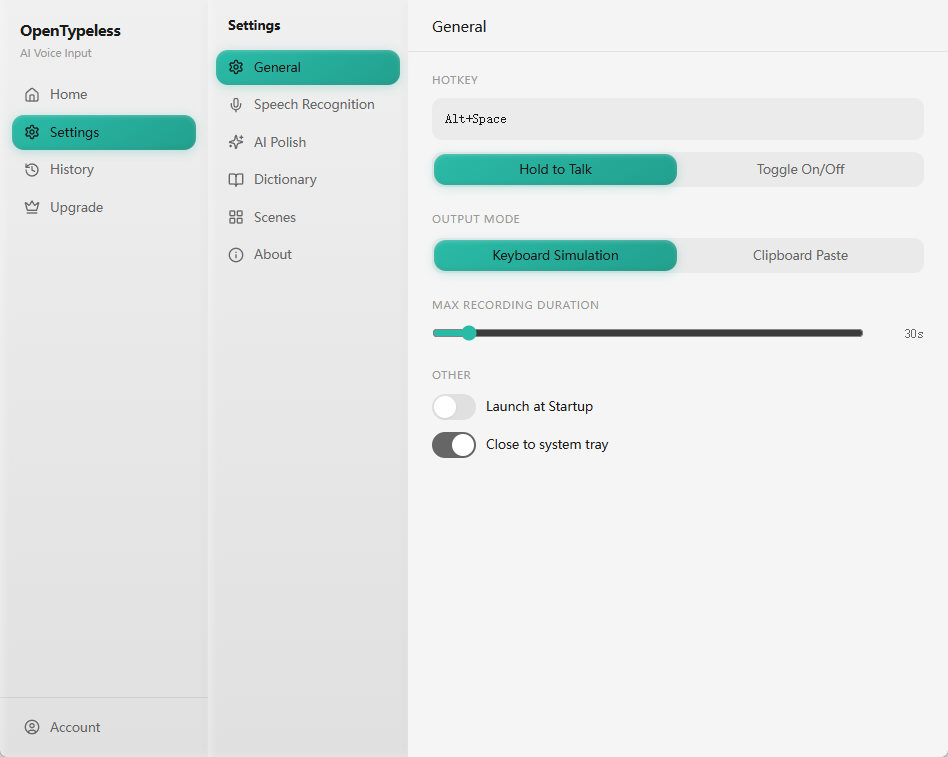
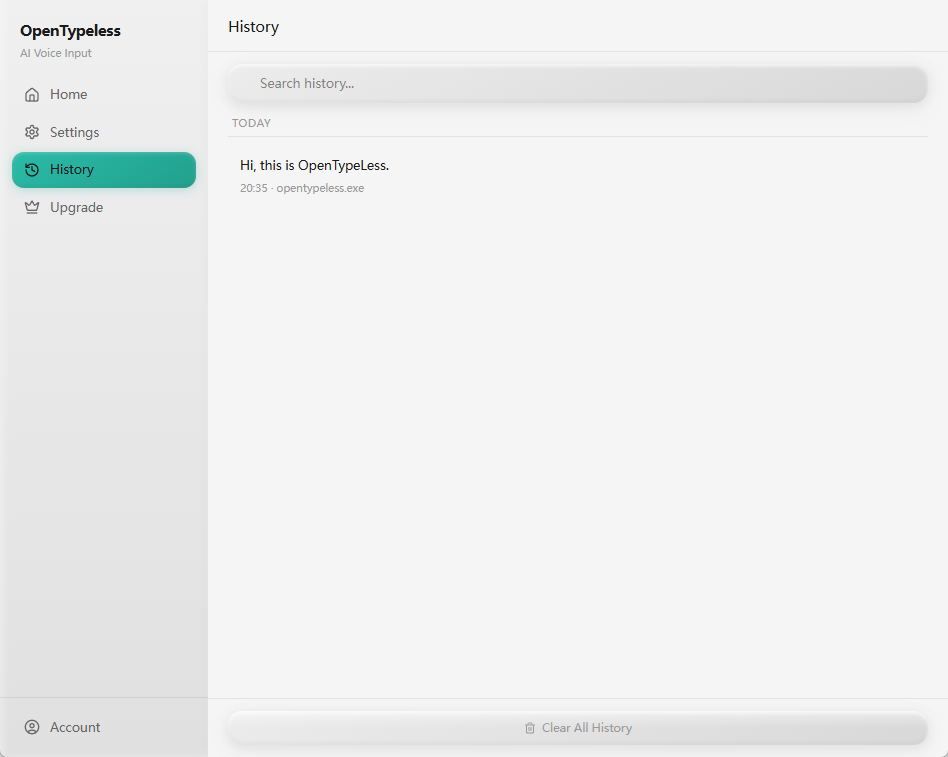
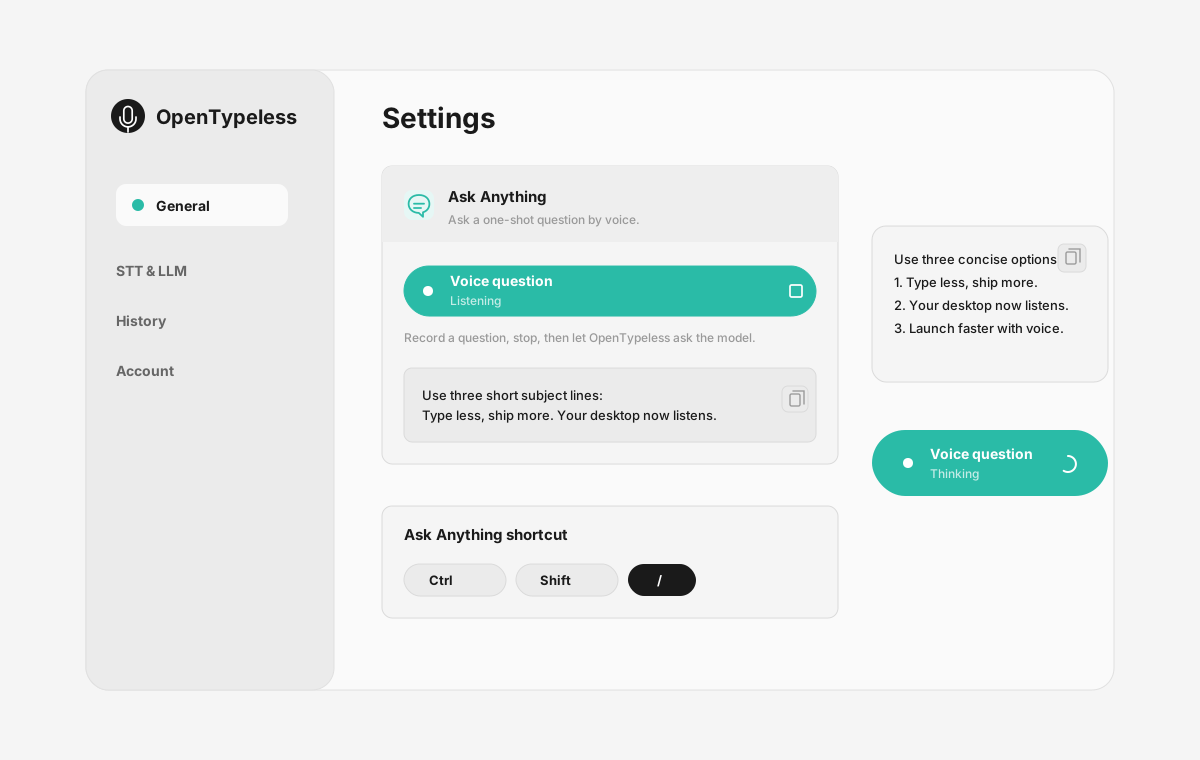
Product UI behind the workflow
A quick look at dictation, provider setup, history, and the Ask Anything voice flow.
Typeless for Mac vs OpenTypeless
Use this table to decide whether you need the official product or an open-source macOS alternative.
| Decision point | Typeless | OpenTypeless |
|---|---|---|
| Official product | Use Typeless official site | Independent open-source alternative |
| macOS workflow | Check official Mac support | macOS desktop workflow supported |
| Provider choice | Product-managed path | BYOK STT and LLM providers |
| Cross-platform habit | Check official platform support | Windows, macOS, Linux workflow |
Set up OpenTypeless on macOS
Start with the desktop build, then tune providers and vocabulary for daily Mac writing.
Download the macOS build
Use the OpenTypeless download page and choose the Mac package.
Open settings
Configure the STT and LLM providers that match your privacy, cost, and latency needs.
Add vocabulary
Add names, acronyms, product terms, and technical words so output needs less cleanup.
Test in Mac apps
Use the hotkey in browsers, notes, docs, email, chat, and editors.
FAQ
Short answers for the search questions this page targets.
Is Typeless available for Mac?
Check Typeless official website for current platform support. If you need an open-source macOS alternative, OpenTypeless supports a Mac voice typing workflow.
Is OpenTypeless the same as Typeless?
No. OpenTypeless is an independent open-source project and is not affiliated with Typeless.
Does OpenTypeless work on macOS?
Yes. OpenTypeless supports macOS as part of its cross-platform desktop voice input workflow.
Can I use Whisper on Mac with OpenTypeless?
OpenTypeless can work with Whisper-compatible local or hosted paths when configured through supported providers.
Is OpenTypeless free on Mac?
The desktop app is free and open source. Provider costs depend on whether you use cloud keys, managed cloud, or local/private providers.
Related pages
Continue the same search journey with deeper guides and comparisons.
Try the desktop voice input workflow
Start with a real daily writing app, then tune providers, prompts, dictionary terms, and local mode as your workflow becomes clearer.