Voice typing in any app, not just one browser tab
OpenTypeless is a desktop voice input workflow for people who write in many places: Gmail, Notion, Slack, VS Code, Cursor, documents, browsers, and native apps.
Why browser-only dictation feels limiting
A browser extension can be convenient for Gmail or web forms, but most real workflows cross boundaries. You may start in Gmail, switch to Slack, write a GitHub comment, update a Notion page, and then answer a desktop app notification.
OpenTypeless is designed as a desktop layer instead of a website-only tool. The important promise is not that every app behaves identically. It is that one hotkey, one provider setup, and one polishing workflow can follow you across the places where you write.
What "any app" should mean in practice
This page keeps the promise practical: app-wide voice input, with fallbacks for apps that block direct insertion.
Apps with normal text fields
Gmail, Notion, Slack, browser text boxes, docs, issue trackers, and most editors are the natural targets for a desktop dictation workflow.
Some apps block simulated typing
Security models, sandboxes, and desktop permissions can affect direct insertion. Clipboard output keeps the workflow usable.
The final text should be usable
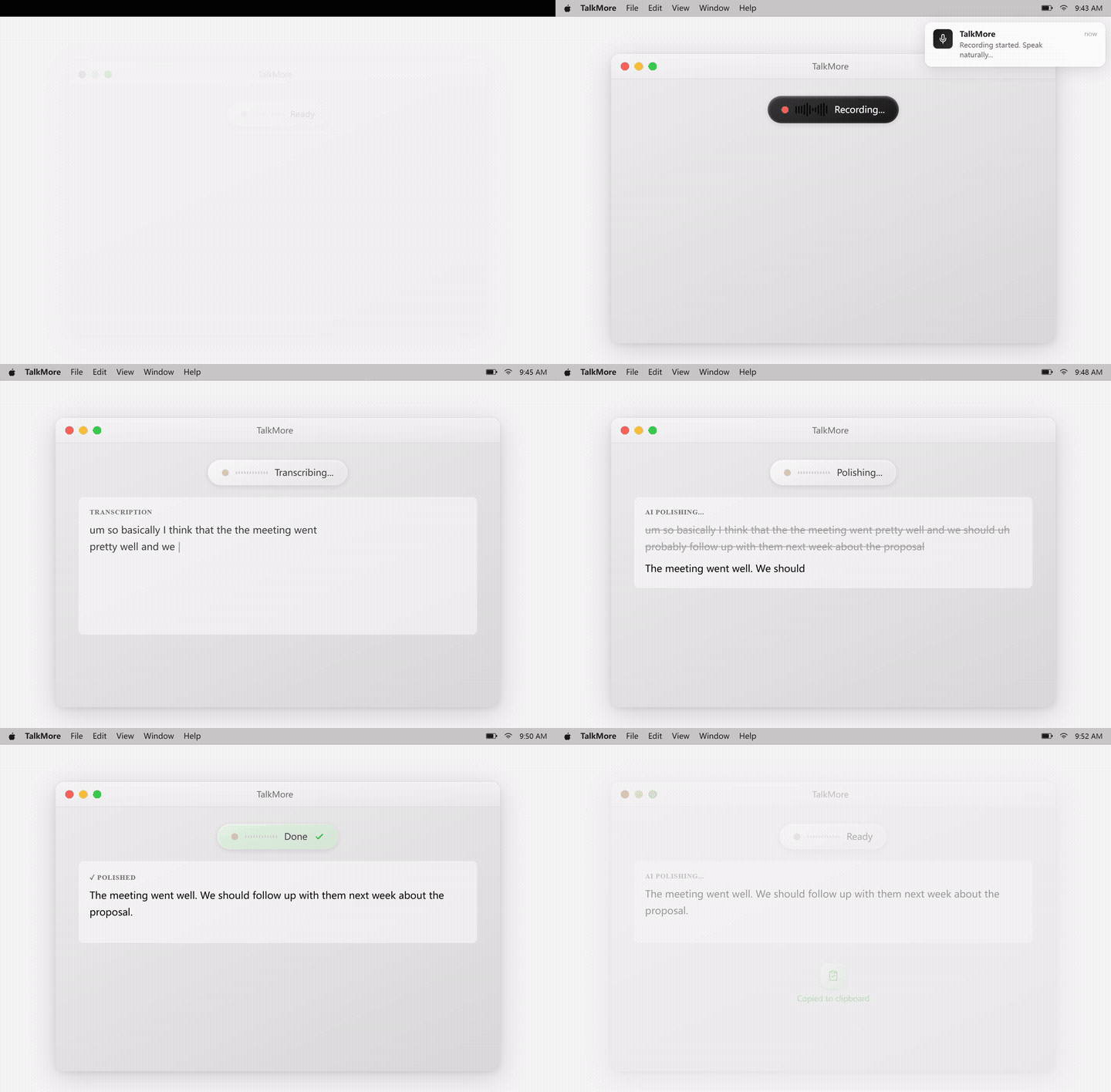
AI polishing can remove filler words, fix grammar, add punctuation, and adapt the tone before text reaches the target app.
Set up voice typing across your apps
Use the same workflow in your real writing stack instead of testing only inside a demo box.
Install the desktop app
Download OpenTypeless for your operating system and launch it before opening your target writing apps.
Pick a global hotkey
Use a shortcut that does not conflict with your browser, editor, or chat app. The hotkey generator can help.
Test direct insertion
Try Gmail, Notion, Slack, VS Code, Cursor, and your browser fields. Keep the apps you actually write in as the test set.
Turn on clipboard fallback
If a target app blocks direct typing, use clipboard output and paste the polished text manually.
Browser extension vs desktop voice typing
The difference is where the workflow can follow you after the first app changes.
| Need | Default path | OpenTypeless path |
|---|---|---|
| Gmail and web apps | Browser extensions can work well inside supported web pages | Works from the desktop and can still target Gmail and browser text fields |
| Desktop apps | Often out of reach for browser-only tools | Designed for native desktop apps, editors, chat clients, and browsers |
| Provider setup | Usually fixed by the extension vendor | Bring your own STT and LLM providers or configure local providers |
| Output cleanup | Varies by extension and page | Consistent AI polishing before insertion across supported targets |
| Fallback behavior | If the page blocks it, the workflow often stops | Clipboard output gives users a practical fallback |
Common places to use it
These examples are intentionally ordinary because that is where daily voice input either saves time or gets abandoned.
Gmail and support replies
Speak a rough reply, polish the tone, then insert it into Gmail or another customer communication tool.
Notion and docs
Draft notes, outlines, meeting summaries, and long-form text without being limited to one browser feature.
VS Code, Cursor, and GitHub
Dictate code comments, issue replies, PR notes, and documentation while preserving technical vocabulary.
Slack and team chat
Turn spoken thoughts into shorter, cleaner messages before sending them to teammates.
FAQ
Short answers for users comparing tools.
Does OpenTypeless work in Gmail?
Yes, Gmail is a good fit because it uses normal browser text fields. If direct insertion fails in your browser setup, use clipboard output.
Is OpenTypeless a browser extension?
No. OpenTypeless is a desktop app. That is why it can target browsers and desktop apps instead of staying inside one website.
Does it truly work in every app?
No desktop voice input tool can honestly promise perfect behavior in every app. OpenTypeless is designed for app-wide use and provides clipboard fallback when a target blocks direct insertion.
Why use AI polishing for short messages?
Raw speech often includes filler words, repeated starts, and unclear punctuation. Polishing helps short replies sound intentional instead of transcribed.
Related guides
Useful next pages for the same search journey.
Try the desktop voice input workflow
Start with the default setup, then tune providers, prompts, shortcuts, and local mode as your workflow becomes clearer.