Voice Dictation for Microsoft Word
Speak Word drafts when typing slows you down, then use OpenTypeless to clean up rough speech into more readable paragraphs before insertion.
OpenTypeless helps you use voice input around Microsoft Word by turning spoken prompts, notes, or explanations into polished text. You can dictate into the app, clean up rough speech with an LLM, and use Ask Anything when you want a one-off answer before writing.
Reviewed against SEO expansion research on 2026-06-30.
How to decide
Choose based on the job, not only the keyword.
Dictate longer prompts
Speak rough ideas for Microsoft Word, then let AI polishing turn them into clear instructions, notes, or questions.
Ask before you write
Use Ask Anything for a quick explanation or rewrite, then paste the useful part into your current workflow.
Keep provider control
Use the STT and LLM providers that match your latency, privacy, language, and cost needs.
Product-specific details
Each section is written around a distinct user job so the page does not become a thin keyword variant.
What to dictate for Microsoft Word
Dictate reports, meeting notes, proposals, legal drafts, edits, and document comments. Use Ask Anything for a quick rewrite, structure suggestion, or simpler explanation before adding the final text.
The important difference from generic dictation is that OpenTypeless is built for desktop workflow: hotkey, speech capture, transcript cleanup, and insertion where you are already working.
How Ask Anything fits this workflow
Sometimes the right next step is not to insert text immediately. You may want an explanation, a shorter prompt, a rewrite, or a quick check first.
Ask Anything handles that one-off question by recording your voice, transcribing it, sending it to the model, and showing only the final answer.
Why this page is not a thin app clone
This page focuses on the specific job of using voice input around Microsoft Word. It links back to the broader any-app workflow and to related developer/productivity pages instead of duplicating the same generic dictation copy.
Microsoft Word voice workflow options
The best option depends on whether you need quick text entry, cleaned-up prompts, or one-off AI answers.
| Decision point | Option | What to know |
|---|---|---|
| Built-in typing | Best for | Short edits and precise small changes. |
| Tradeoff | Slow for long prompts, explanations, and messy first drafts. | |
| Generic dictation | Best for | Simple speech-to-text when the raw transcript is enough. |
| Tradeoff | Often still needs manual cleanup before it is useful. | |
| OpenTypeless | Best for | Hotkey voice input, AI cleanup, provider choice, and Ask Anything. |
| Tradeoff | Hosted providers may use cloud quota unless you configure BYOK or local paths. |
Set up voice input for Microsoft Word
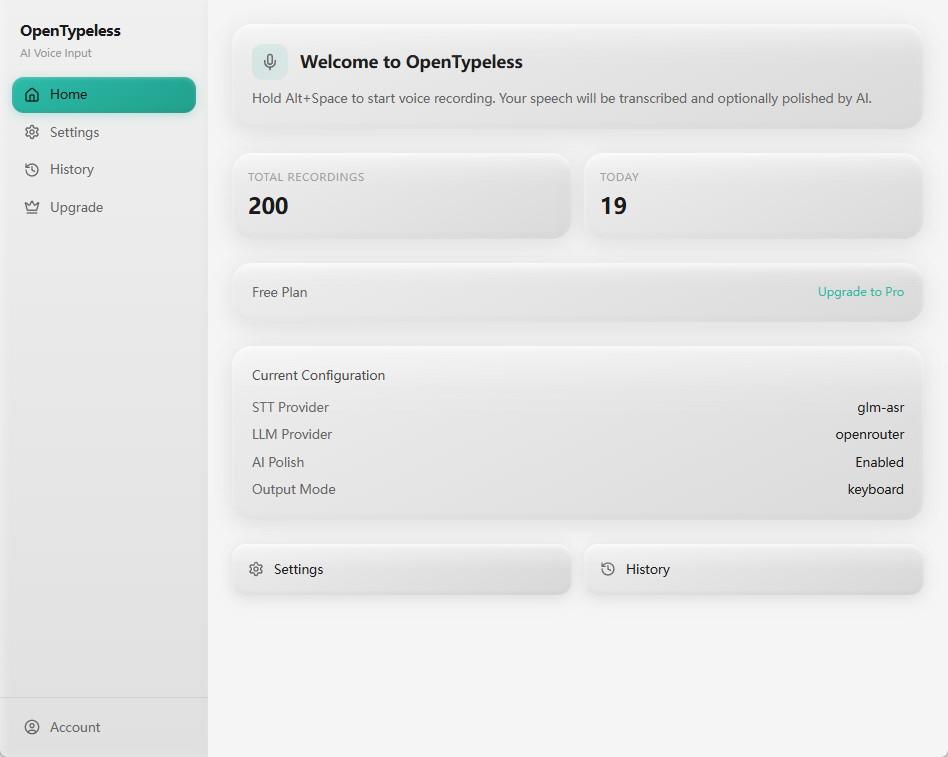
Use the same OpenTypeless desktop flow across apps, then tune providers and prompts for your own work.
Install OpenTypeless
Download the desktop app and enable the global hotkey.
Choose STT and LLM providers
Start with a fast hosted provider, or configure BYOK/local providers if you need more control.
Open Microsoft Word
Put the cursor where you want text, then trigger OpenTypeless and speak.
Review and insert
Use AI polishing for grammar, structure, and tone before inserting the final text.
FAQ
Short answers for users comparing tools and workflows.
Does OpenTypeless integrate directly with Microsoft Word?
OpenTypeless is app-agnostic desktop voice input. It works by capturing speech, producing text, and inserting or copying that text into the app you are using.
Can I use Ask Anything instead of inserting text?
Yes. Ask Anything is for one-off voice questions where you want the answer first, not an immediate text insertion.
Does this require a paid cloud plan?
The desktop workflow can use different provider setups. Hosted cloud STT or LLM usage should count toward cloud entitlement, while BYOK/local paths depend on your own provider configuration.
Why not just use native voice typing?
Native dictation can be enough for short text. OpenTypeless is stronger when you need provider choice, AI polishing, custom vocabulary, history, or the Ask Anything workflow.
Related pages
Continue through the strongest internal-link path.
Try the desktop voice input workflow
Start with the default setup, then tune providers, shortcuts, local mode, and Ask Anything as your workflow becomes clearer.